Checking from the device itself:
You can see the firmware version by doing the following:
- Go to the menu by pressing the function key or knob on the device
-Note: depending on if this is a handheld or a base model, the function button will be a silver knob on the left side of the device for the base mount models, or if it is a handheld, it will be on the left of the device on the side.
- Next highlight and select the option that says "Settings", this is typically found at the bottom of the list
- Now highlight and select the option that says "See Scanner Information"
- After this, Select the option labeled "Firmware Version" This will display your firmware version, serial number, and Check Sum number.
- Go to the menu by pressing the function key or knob on the device
-Note: depending on if this is a handheld or a base model, the function button with either be a silver knob on the left side of the device, or if it is a handheld, it will be on the left of the device on the side.
- Next highlight and select the option that says "Manage Full Database"
- Now highlight the option that says "Information"
- You should now see a screen that says "Information dB Version: [Insert date of database version here]
Checking your Sentinel version:
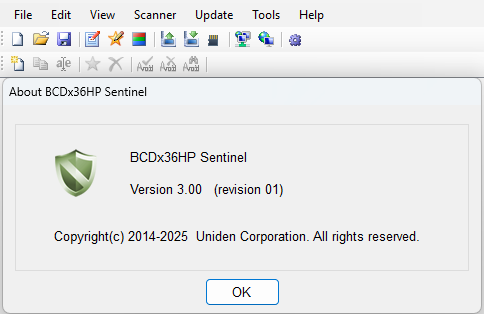
Homepatrol-2
You can see the firmware and Database version by doing the following:
- Start by pressing the "Menu" button in the bottom left of the screen.
- Next, select the "Advanced Menu" button on screen in the bottom right
- Once selected you will see an up and down arrow, press the down arrow in the bottom right
- Now select "Version Information" which will display your firmware, database, and your electronic serial number, or "ESN".
- Note: If you are wanting to perform the Extreme upgrade and are looking for the "Check Sum" it will be the last 3 number directly after the dashed line on that ESN.
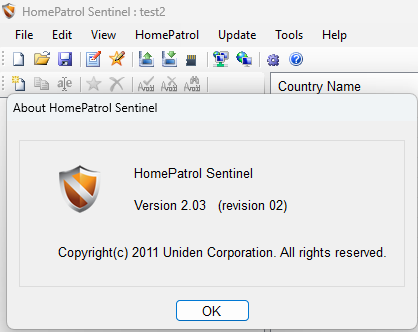
BCD325P2, BCD996P2, BCDX60DN (Firmware only):
You can see the firmware version by doing the following:
- Go to the menu by pressing the function key or knob on the device
-Note: depending on if this is a handheld or a base model, the function button with either be a silver knob on the right side of the device for the base mount models, or if it is a handheld, it will be on the top left of the device on the side.
- Next highlight and select the option that says "Settings", this is typically found at the bottom of the list
- Now highlight and select the option that says "See Scanner Information"
- After this, Select the option labeled "Firmware Version" This will display your firmware version, serial number, and Check Sum number.
Was this article helpful?
That’s Great!
Thank you for your feedback
Sorry! We couldn't be helpful
Thank you for your feedback
Feedback sent
We appreciate your effort and will try to fix the article