Step 1. Go to uniden.com.
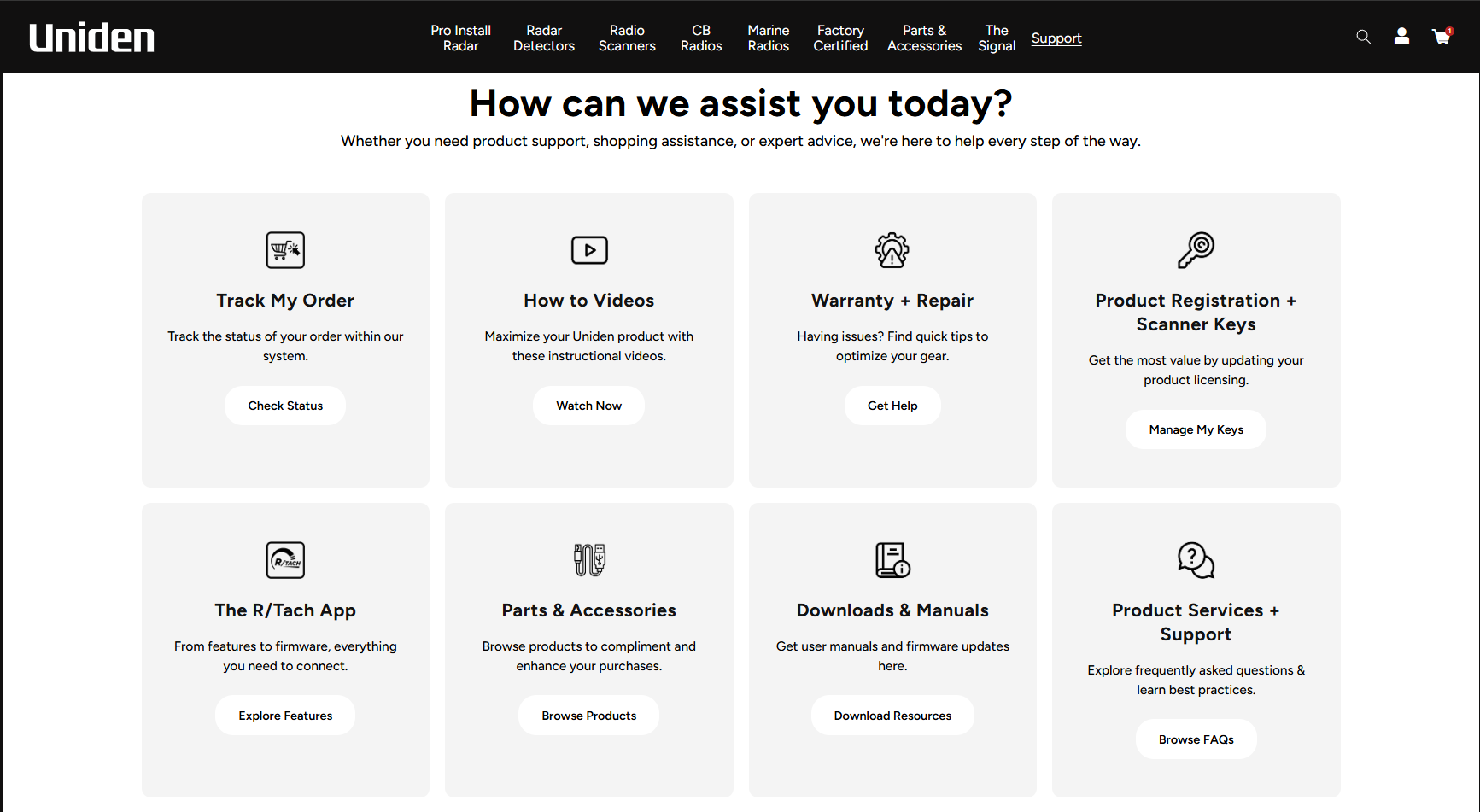
Step 2. Select the support tab from Uniden’s homepage.
Step 3. Select the “Manage my keys” option under Product Registration + Scanner Keys.
Step 4. Log in to my.uniden.com with your credentials that were used to register your products.

Step 5. Select “Register A Product”.
Step 6. Select the product category, and the device you wish to register from that category.

Step 7. Enter in the credentials associated with your account, and the information for the device you wish to register. If you need assistance finding the serial number, refer to you owner's manual or contact Uniden Customer Support.

Step 8. After you press “Register”, you will be brought to your registered products page. At this point if you are registering a product other than a Radio Scanner, you've successfully registered your device to your My.Uniden.com.
If you are registering a Radio Scanner, please continue to the
next steps to register the ESN and CheckSum, otherwise your product is now registered!
Registering ESN for key purchases:
You should now see your device listed. If you are intending to purchase scanner keys for your device, you'll need to enter the ESN first. If you click on the line stating "ESN Needed to Purchase _____ key" you'll be brought to a new line to enter this information.

Step 9. To find your ESN you can find this in the menu under "Settings" followed by "See Scanner Information" and then "Firmware Version". You'll be asked to enter the ESN and the CheckSum as shown below: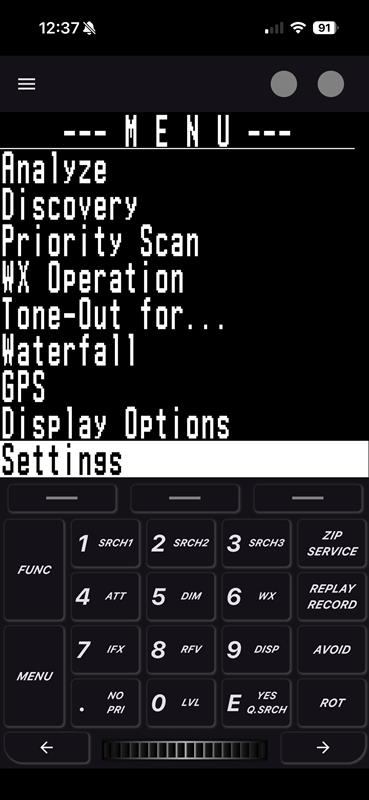
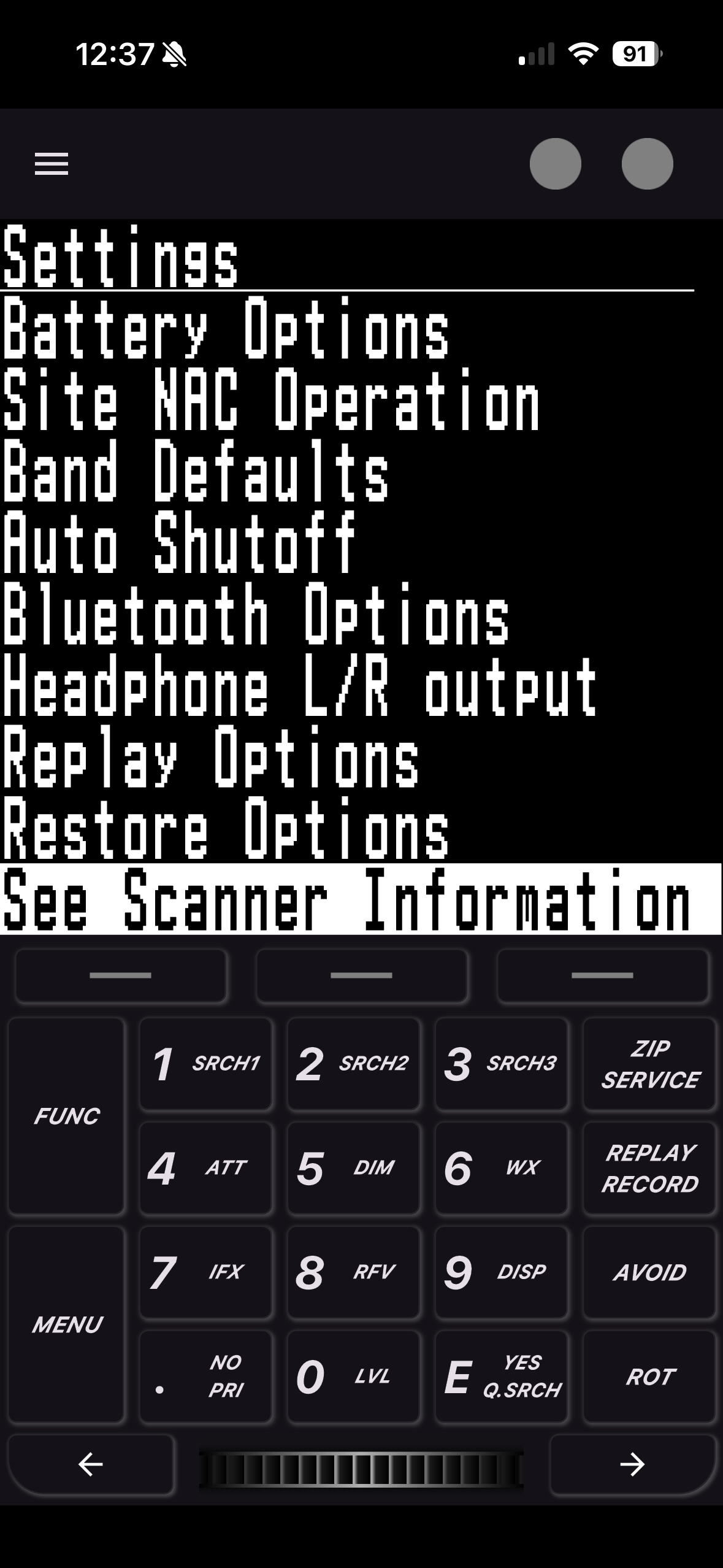
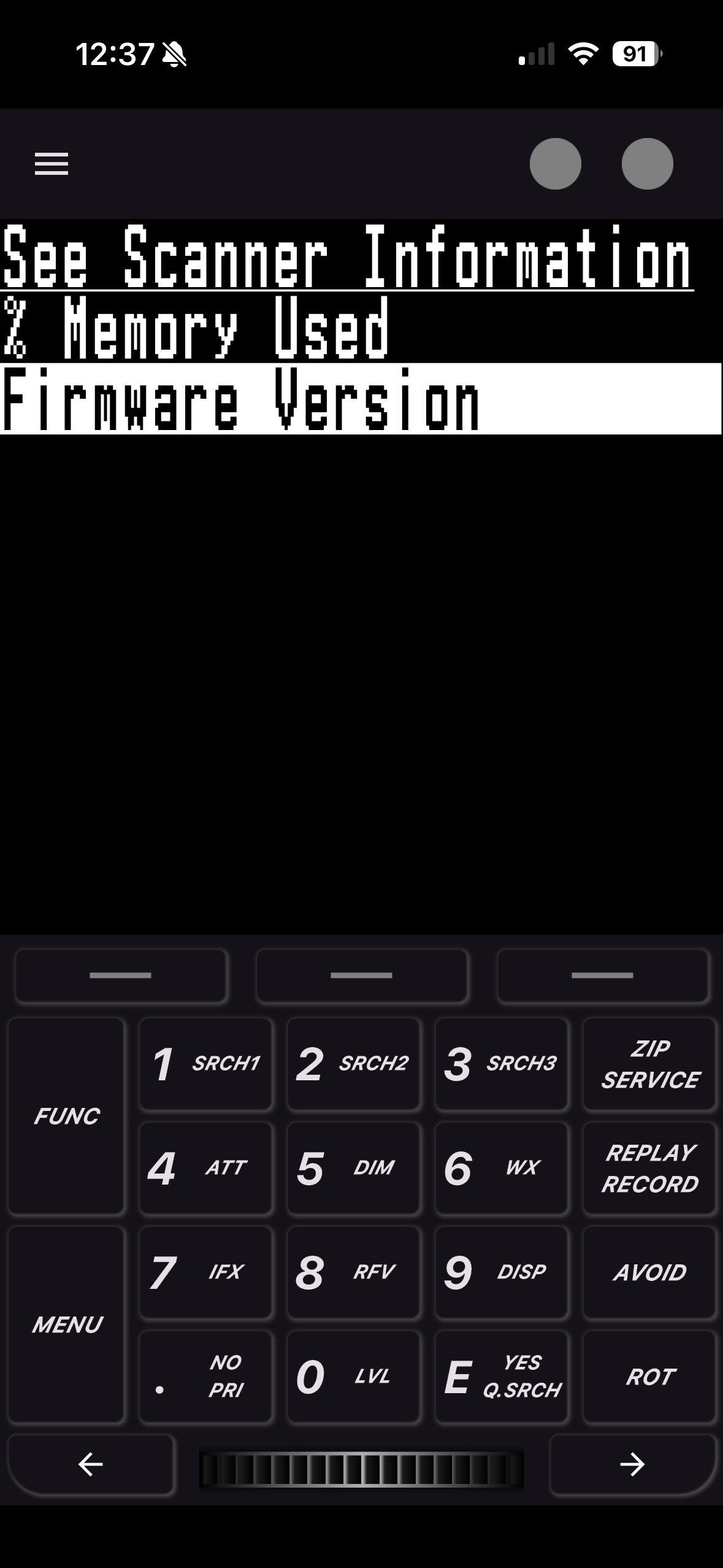
As an example, I want to apply my ESN for my BCD325P2 scanner which after going into the system information on the scanner it shows me "SN37902028002627" and "Sum=0E4".
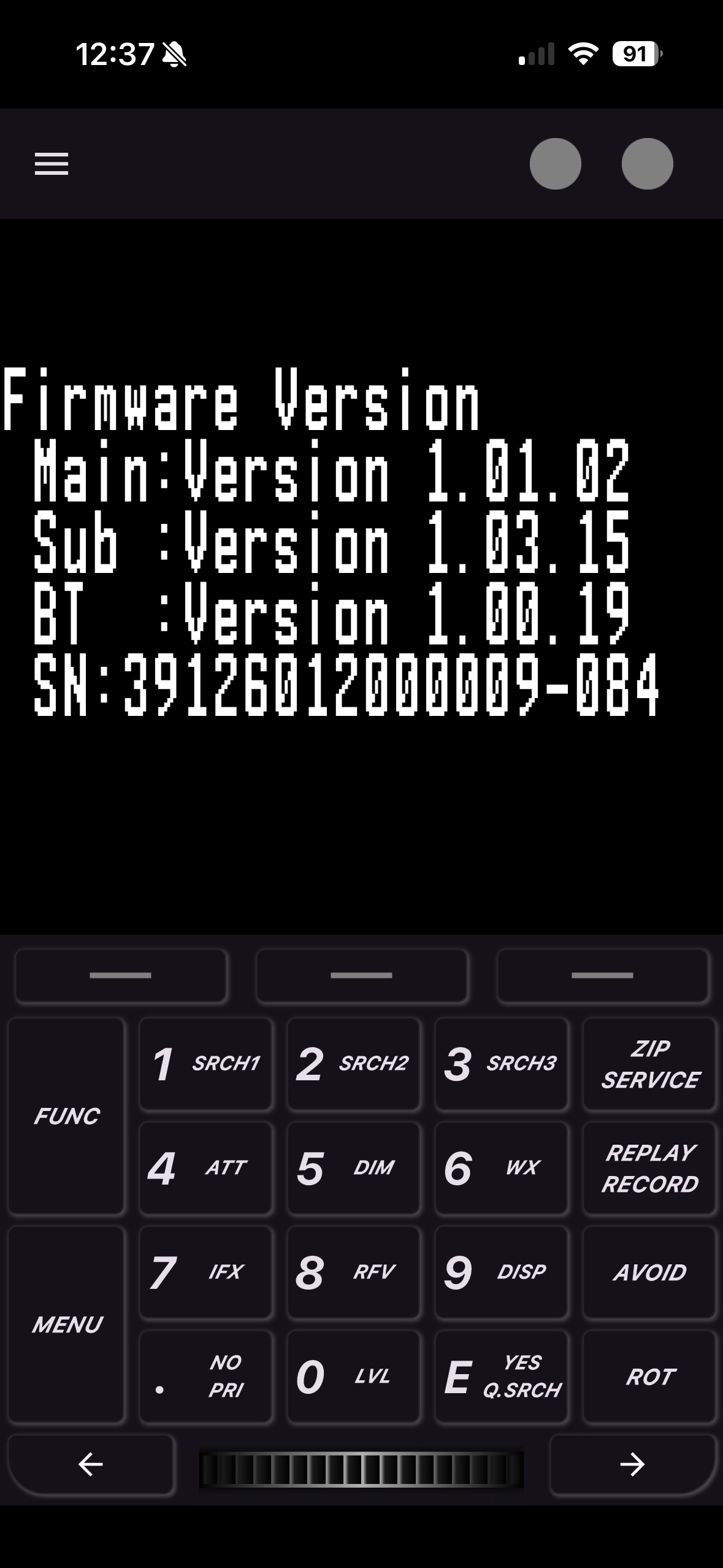
Note: If you are using a location-based scanner such as the BCD436HP, BCD536HP or the SDS line of scanners, the ESN and checksum will be displayed differently than described above when looking in the system information on the scanner as seen below
Example:
ESN: 39126012000009
Check Sum: 084
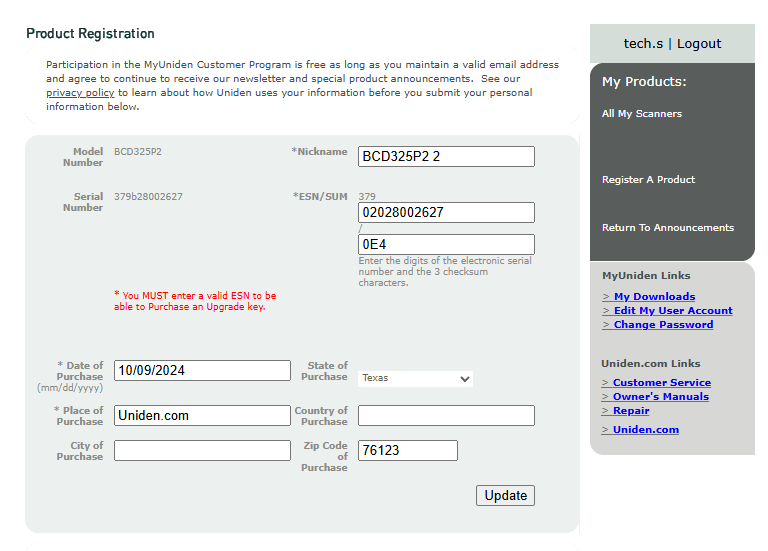
Using this information found on the scanner, I'll input the information into the required fields as shown below.
For my particular scanner the first three digits are already input for me (as seen in the image below, right beside where it says ESN/SUM) but some scanners may differ on what is already pre-filled for you. I'll put "02028002627" for the first box (this is the ESN), followed by "0E4" for the second line (this is the check sum).
Once you've verified your information is entered correctly, press "Update", where you will be brought back to your registered products page that should now say "Purchase ______ key" where it used to say, "ESN Needed to Purchase _____ key".
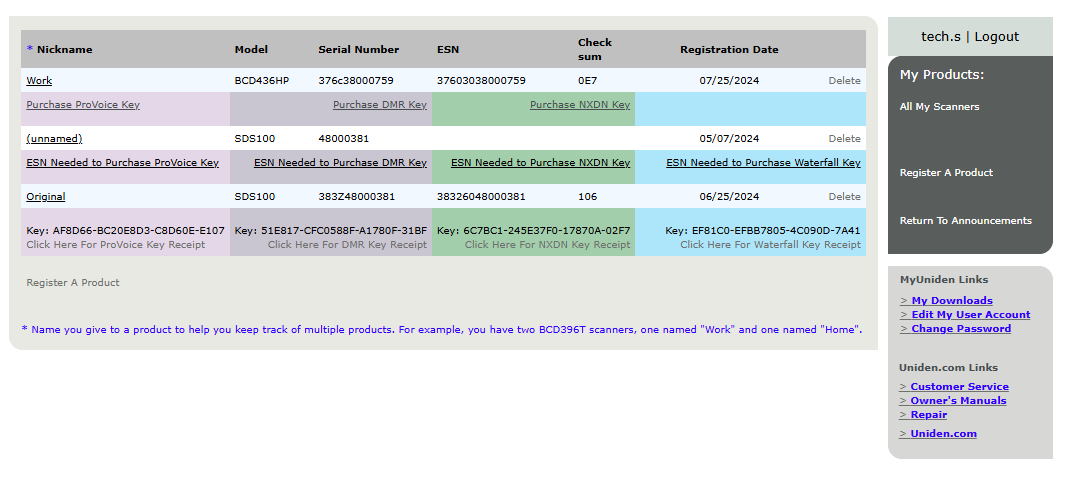
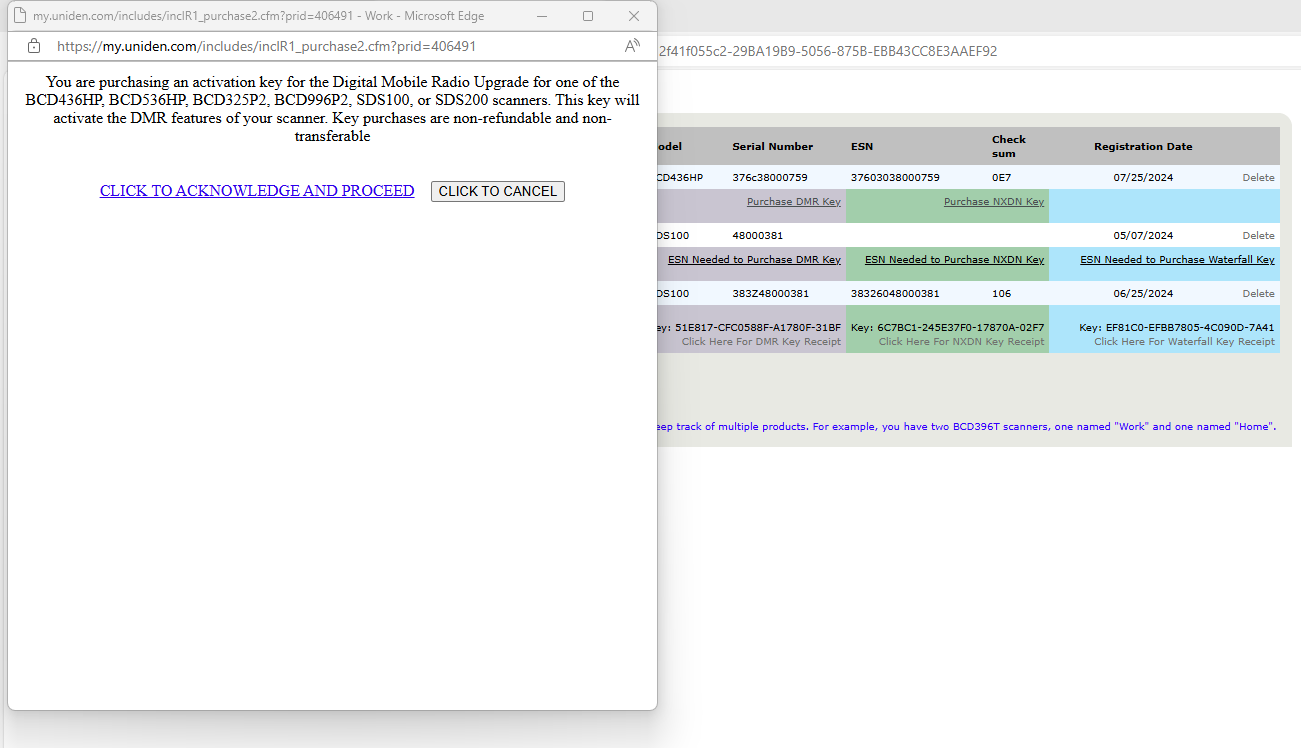
Now Select that option for purchasing the key where you'll be brought to a new window with a purchasing acknowledgement. This acknowledgement encompasses that you understand that these keys are non-refundable and ineligible to be transferred to a different device.
Step 11. Enter your payment information. Once you have verified all of the information is correct, press “Continue”.
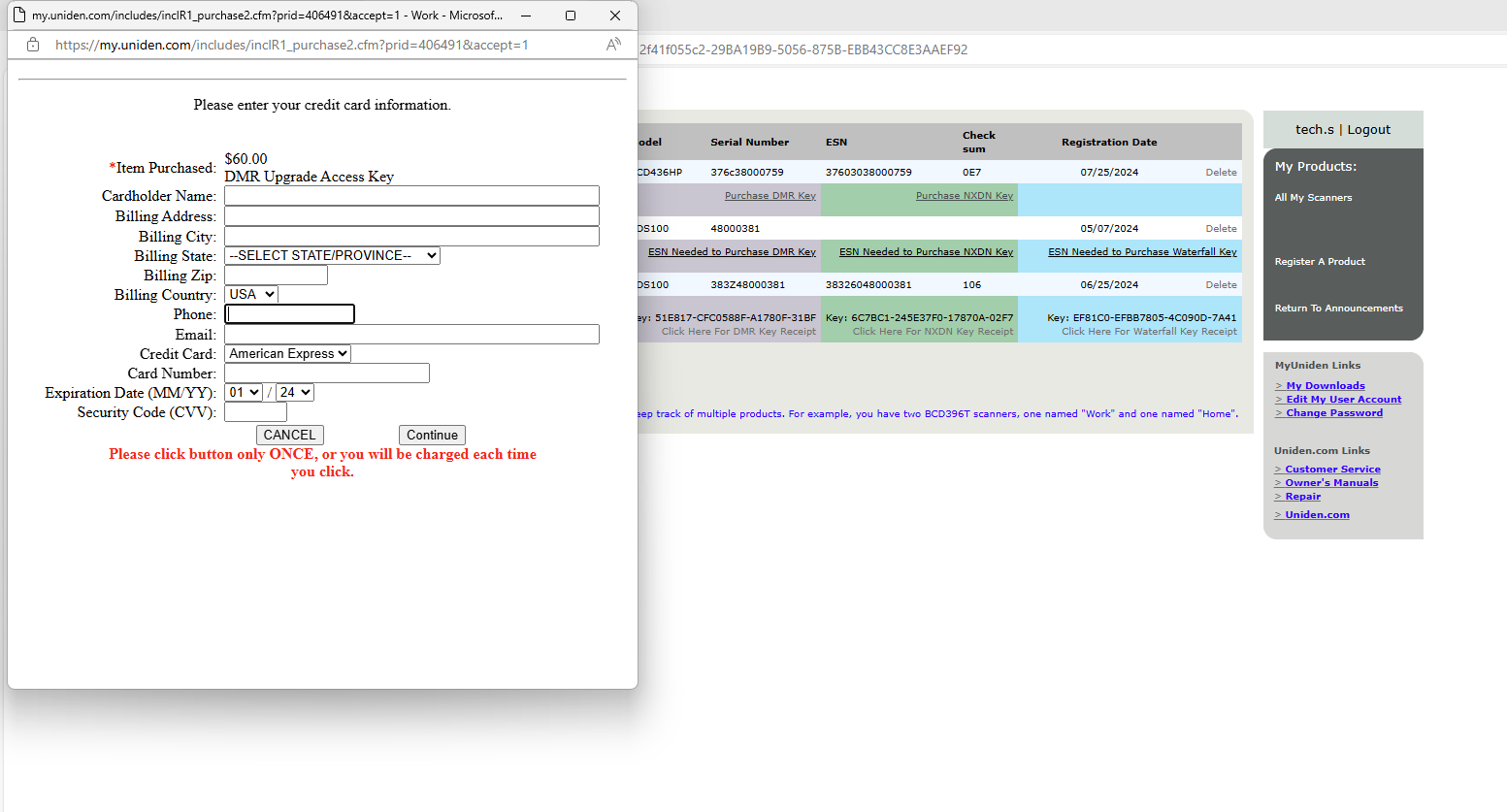
Step 12. You should now see the key you purchased say “Get _______ Key” rather than
Purchase ___________ Key. You can enter the generated code into your scanner. Ensure that the numbers and letters being entered are the same as what was generated for you.
Step 13. To enter the key to the device:
- Menu
- Settings
- Upgrade
- Upgrade [Insert applicable key type]
- Input [Insert applicable key type]
Enter the entire license key including the dashes. This is done by rotating the scroll knob to select the characters and the arrow soft keys to advance the cursor. Do not press the E/Yes key until the last character is entered!
Was this article helpful?
That’s Great!
Thank you for your feedback
Sorry! We couldn't be helpful
Thank you for your feedback
Feedback sent
We appreciate your effort and will try to fix the article