How to navigate the SDS200:
To navigate the SDS200, you’ll need to utilize the FUNCTION knob (left side of the photo) and the MENU knob (right side of the photo). Depending on certain operations of the SDS200, you may need to utilize the “SOFT KEYS” (the three dash lines in the center of the photo, 1=Left, 3=Right). To open the main menu, press the MENU knob. To navigate to one of the options on the menu, rotate the FUNCTION knob clockwise to go down, and counterclockwise to go up. Press the FUNCTION knob to select the option you are highlighting on screen.
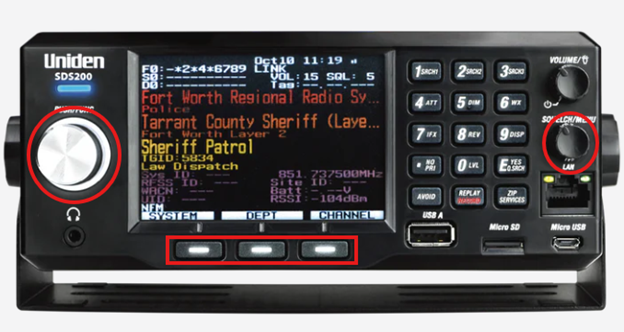
To know what part of the menu you are in, each time you choose an option your selection will be displayed at the top of the screen to let you know where you are. Should you incorrectly select something, or want to go back to the previous screen, you can also press in on the MENU knob to do so.
How to toggle service types:
Press the MENU knob and turn the silver FUNCTION knob clockwise until you’re highlighting the option “Select Service Types”, and once highlighted, press the FUNCTION knob to select it. At the top of the display you should see “Select Service (S1=EXIT)”, and to turn on or off a service you do not wish to listen to, rotate the FUNCTION knob to highlight what you do not want to listen to and press the FUNCTION knob to turn the option on or off.
How to turn on my created favorites list and nothing else:
To toggle your preferred channels to listen to (just your favorites list) you can do so by going to the main menu, followed by selecting the option labeled “Set Scan Selection”. Next select the option labeled “Select lists to monitor” and then turn off all of the on-screen items except the favorites list you’ve made. Once you exit this screen back to the scanning screen, the changes will apply and load in just the favorites list you've made.
How to save a frequency to a Favorites List:
While the device is scanning and you find a channel you enjoy listening to, you can press the Channel SOFT KEY (the 3 keys below the display) to hold onto that channel. You should see the channel highlight on screen, once it does press the “E/Yes” key on the keypad. You should now see at the top of the screen “Advanced Channel Menu” with the option to add the frequency to a favorites list.
If you do not have a favorites list set up yet, you can set one up at this time. Select the top option labeled "New Favorites list" and it will ask you to name your new favorites list. To name the favorites list, rotate the FUNCTION knob clockwise to select a letter, and to go to the next letter space press the associated SOFT KEY below the screen. Once the favorites list is set up, you can continue to add other channels you find while scanning.
If you want to confirm that the channel was added successfully or if you want to see what is in your favorites list, you can do this by going into the main menu, followed by selecting “Manage Favorites”, then the favorites list you either have created or have added the channel to. Now “Review/Edit system” and select your system and if you select “Edit Department” you’ll see all the departments in your favorites list, and selecting a department followed by “Edit channel” will allow you to see and edit all of the channels in each department!
How to go to channels saved via quick search:
If you want to search for a frequency, you already know, you can do so from the main scanning screen. Once on the scanning screen, by pressing the 3rd SOFT KEY, followed by entering the frequency via the keypad on the scanner, and then the 3rd SOFT KEY, you should now see a screen with “Quick Search” on it with the frequency you searched.
To save the frequency to favorites list you’ve already made, you can press the “E/yes” key followed by the “E/yes” key on the keypad. At the top of the screen, it should say “Saving Channel to Favorites list”. If it does say this, press the “E/Yes” key again, and select the favorites list you want to add it to. If you do not have a favorite list already made, you may make one now by highlighting the “New Favorites List” option on the screen and pressing the “FUNCTION” knob, then following the on-screen name entry.
Was this article helpful?
That’s Great!
Thank you for your feedback
Sorry! We couldn't be helpful
Thank you for your feedback
Feedback sent
We appreciate your effort and will try to fix the article