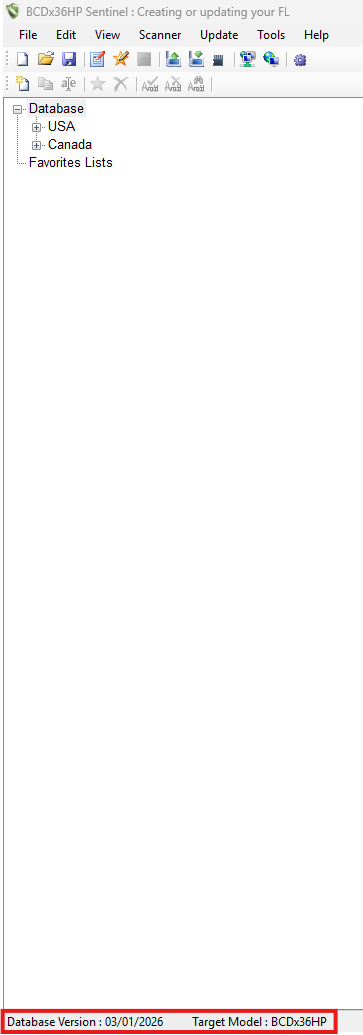
1. Open the Sentinel software from your PC. During this time you should identify the database version as well as the model of scanner you intend on updating the favorites list on. Note: This image does not display the full screen as it may appear to you, so what you see might be slightly different!
2. While your scanner is turned on, connect your scanner to your pc via the USB port. During this process your scanner will ask which mode you want it to be read in, please select "Mass Storage Mode". Now that this is done, go back to your sentinel software on your PC.
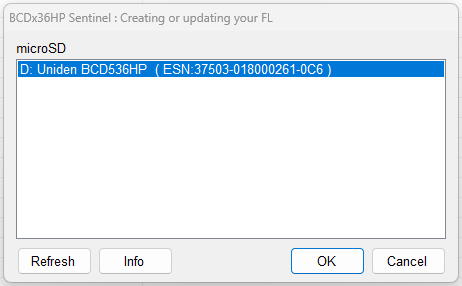
3. Now that you have the device connected to your PC, in the sentinel software select the option labeled "scanner" followed by "read from scanner". You should see a box like the one below display when trying to read from the scanner. Select OK and follow the on screen prompts.
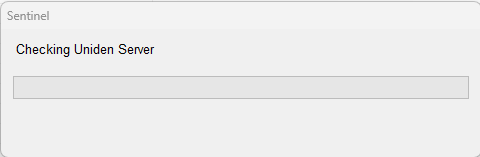
4. Next, select the option at the top of the screen labeled "Update" followed by "update database". If you have not updated the firmware of your scanner, you may do this now by selecting "Update Firmware" rather than "Update Database" You will see a pop-up up stating "Checking Uniden Server" with a loading bar, and once this is completed you will get a notification that it is completed. Select Ok. Note: if you do not see the progress bar moving after 2 minutes, hover over the sentinel logo on your task bar to make sure that there is no other prompt that is displaying.
5. Now that you've updated your database as a whole, we can update the favorites list. Generally, it is easier to write a new favorites list with the updated information. Select your country as it applies to you, for our example I'll be using a different state and county than you might, though the steps will be the same overall.
First, left double click on "USA" which will drop down a list of states for you to choose from. For this example I am using Texas.
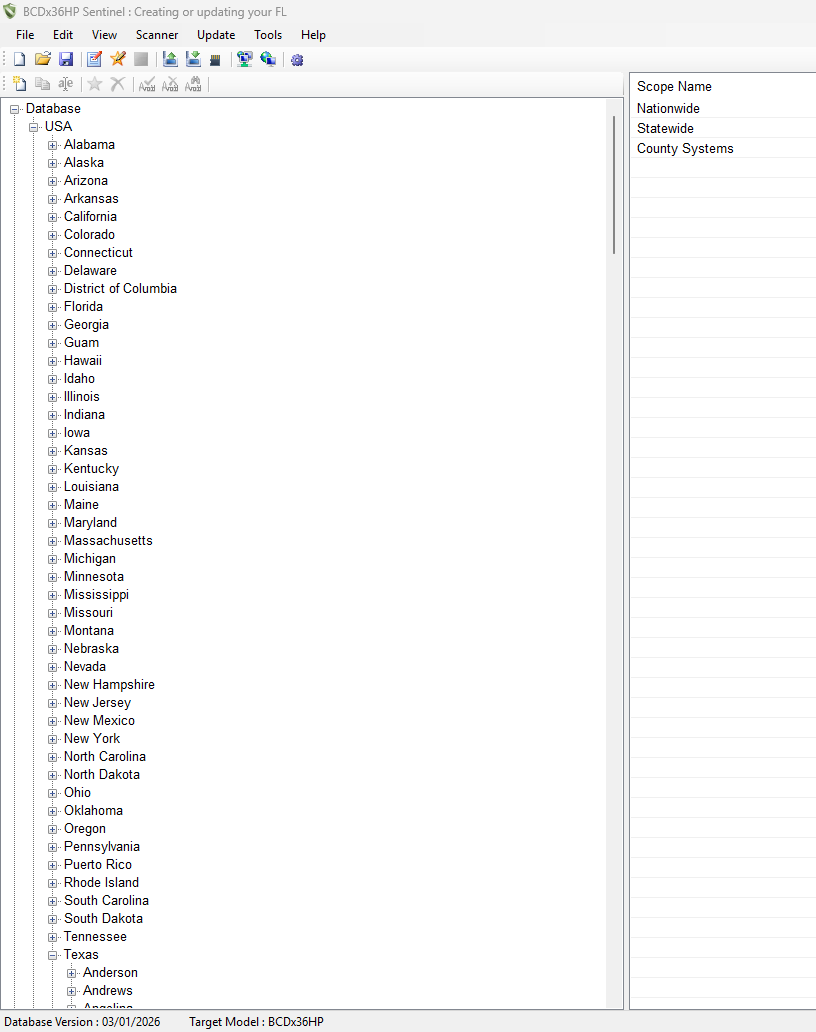
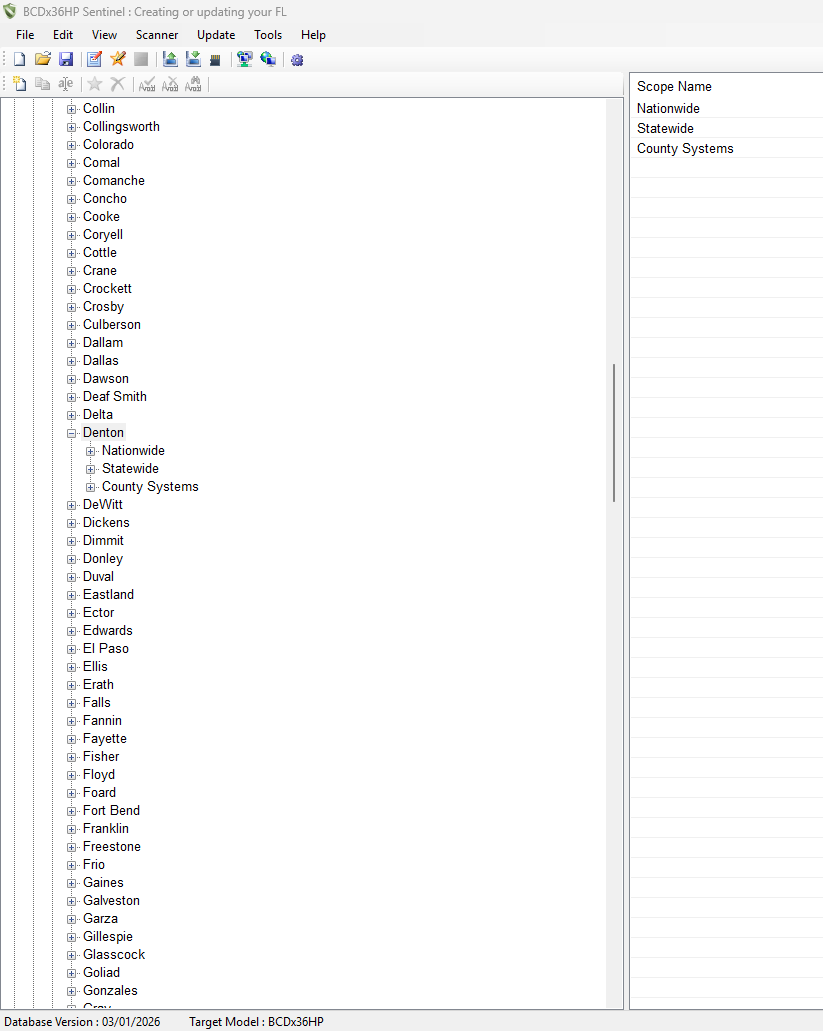
Now double left click on the county you are trying to receive transmissions from. For my example, I am using Denton County. You should now see "Nationwide, Statewide, and County systems" displayed on the right side, as shown below.
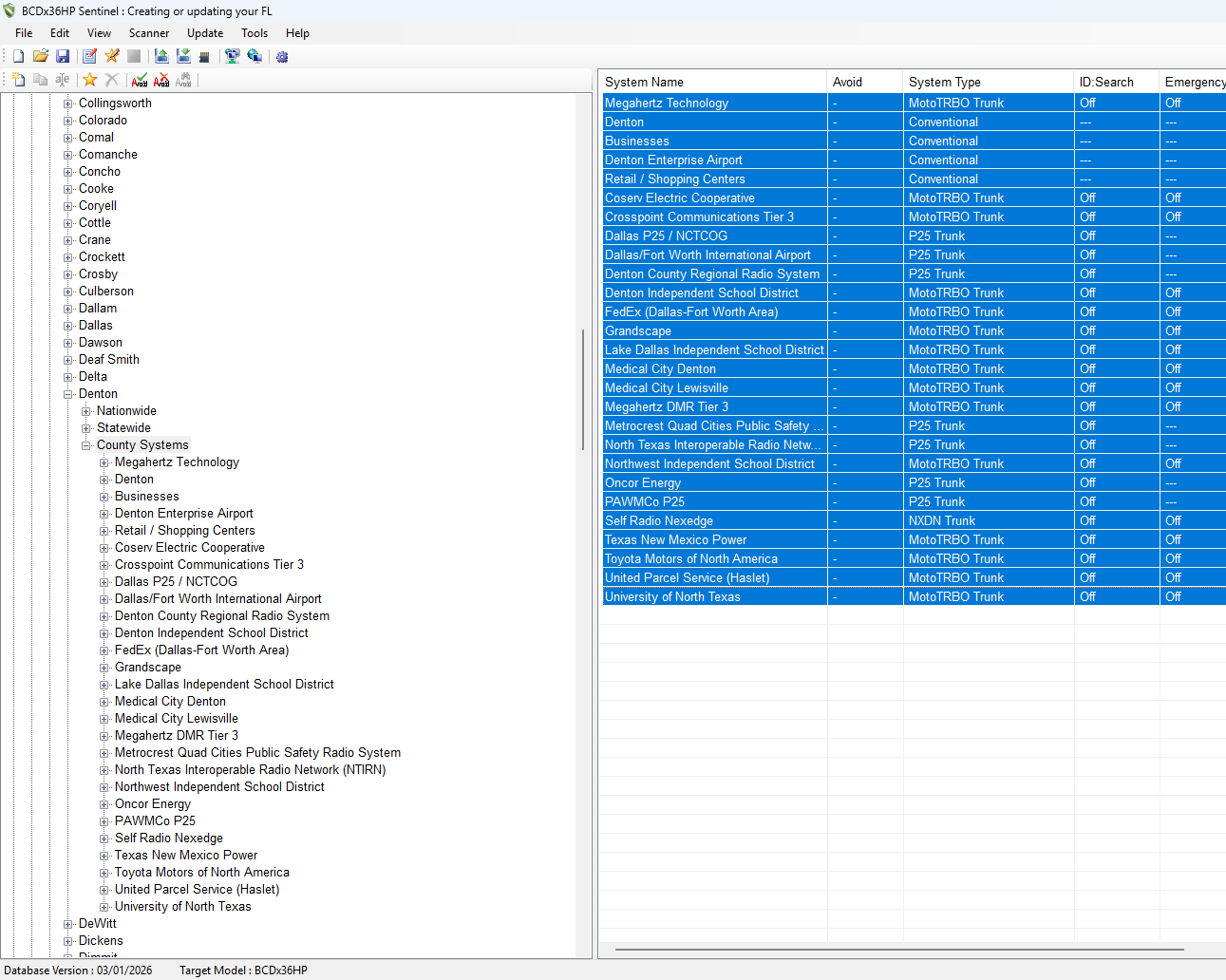
Once you've double left clicked on county you should see all of the systems within the selected county you can possibly receive from. It is recommended to start that you add all of these to your favorites first before deleting unwanted services. This process ensures no data is missing prior to making any changes. To select all of these items, click on the top option, and hold the shift key on your keyboard, then select the bottom one. To ensure they are selected, they will be highlighted in blue as shown below.
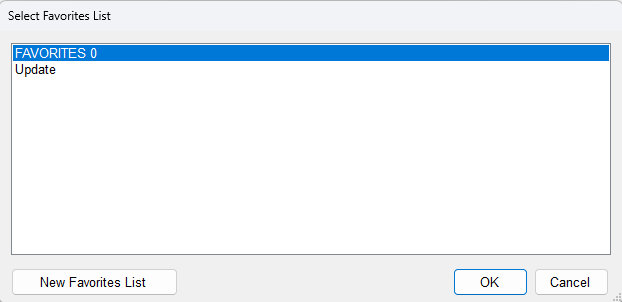
Next, right click anywhere in the blue, you should now see a pop up with a few different things to select, select the "append to favorites" option. Once selected you'll be presented with a pop up requesting you to select a favorites list. It is recommended you create a new favorites list; this way you do not encounter issues while scanning your favorites list. One of the better practices is to name the favorites list something that will help it stand out from the other one. How you do this is up to you, for ease of example, I have named it "Update" but typically adding a date to this name helps with remembering the last time you'd updated your scanner's database. If you have multiple counties to program into your scanner, you can perform the previous steps in step 5, appending them to this newly created favorite list.
Examples of this look like:
Feb2026 Update
11226 Update
Avoid conflicting names that might confuse you like:
Update 1, Update 2, Update 3 etc...
Bobs favorites 1, Bobs favorites 1.2 etc...
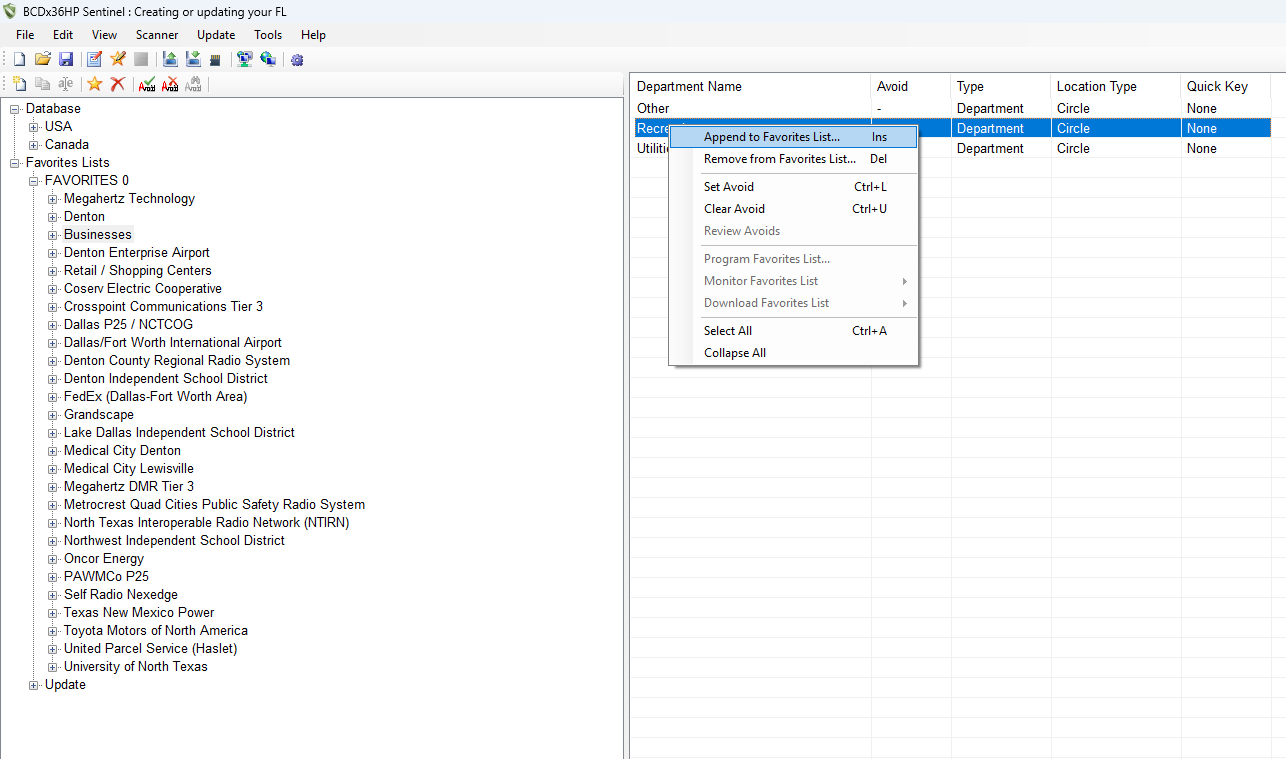
6. Once you have done the above steps, you can now go through the appended lists and delete any systems or departments you don't want to hear. If you don't want to listen to a system all together (see below), right click it and select the option labeled "Remove from favorites list".
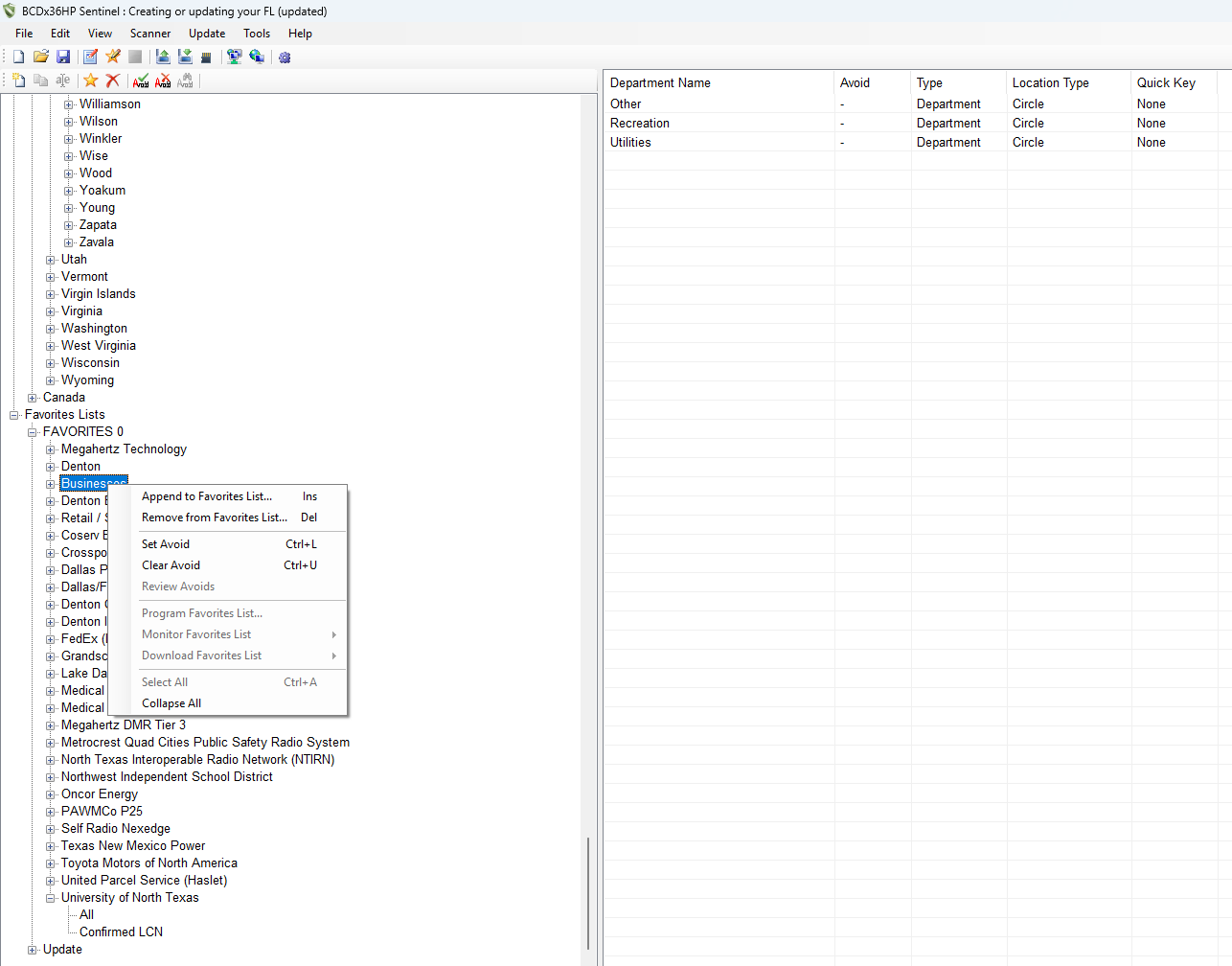
This also can apply to specific departments you do not want to listen to, though it is not recommended to delete too many. If you are missing any of the control frequencies, you may either not receive the channel, or depending on how much you delete, you may not scan anything at all.
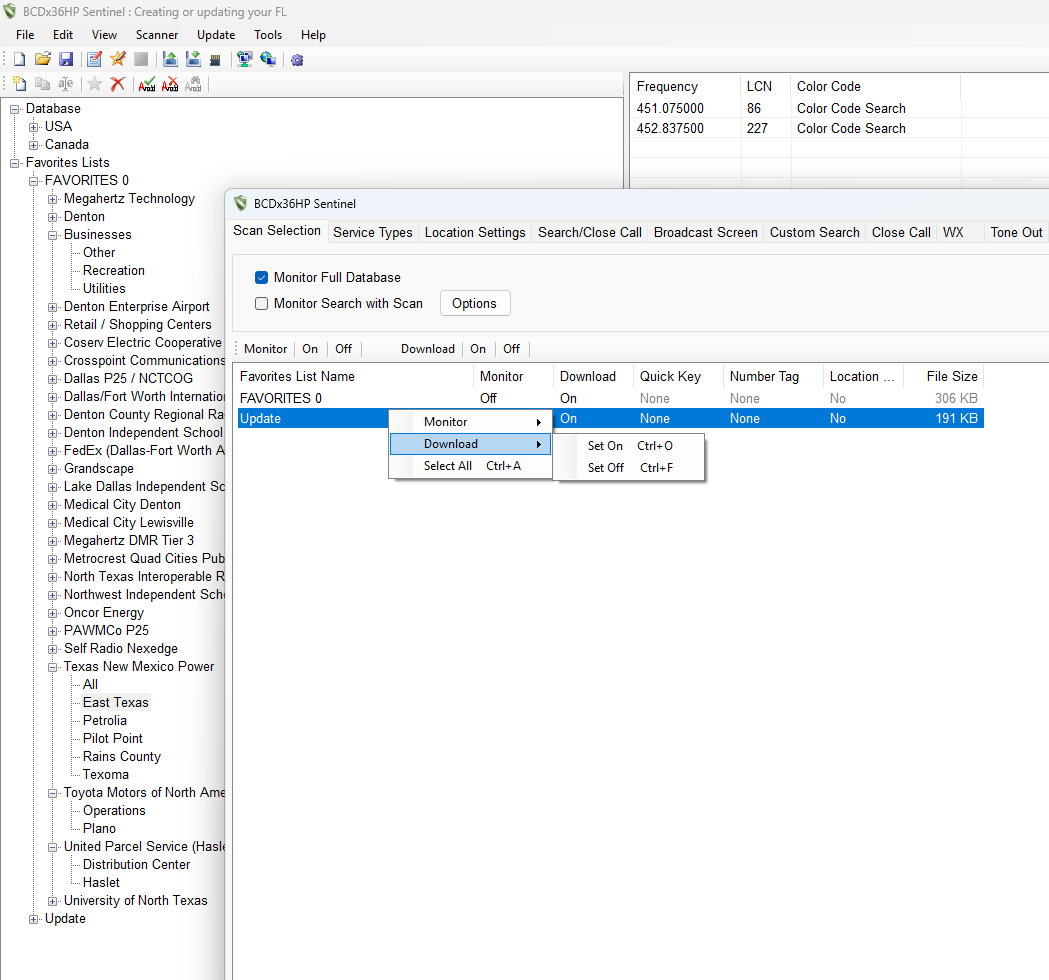
Now that you've made the necessary changes, you can now go back to the top and look for the box with the little red marker on it under the "view" tab, this is your profile editor. click this to open the profile editor, which should be displaying the new favorites list created. Make sure that these are set to "On" for both download and monitor. If you only wish to hear your newly created favorites list, you should uncheck the box labeled "Monitor full database" if it is currently checked.
Next before closing this window, go to the "Service Types" tab and toggle on/off all of the ones you want to hear within the newly made favorites list. Once that is done, you can close this window and go to the "Scanner" tab at the top to write the data to your scanner. Depending on your use case, you may want to force write the full database, but for our example we are skipping this.
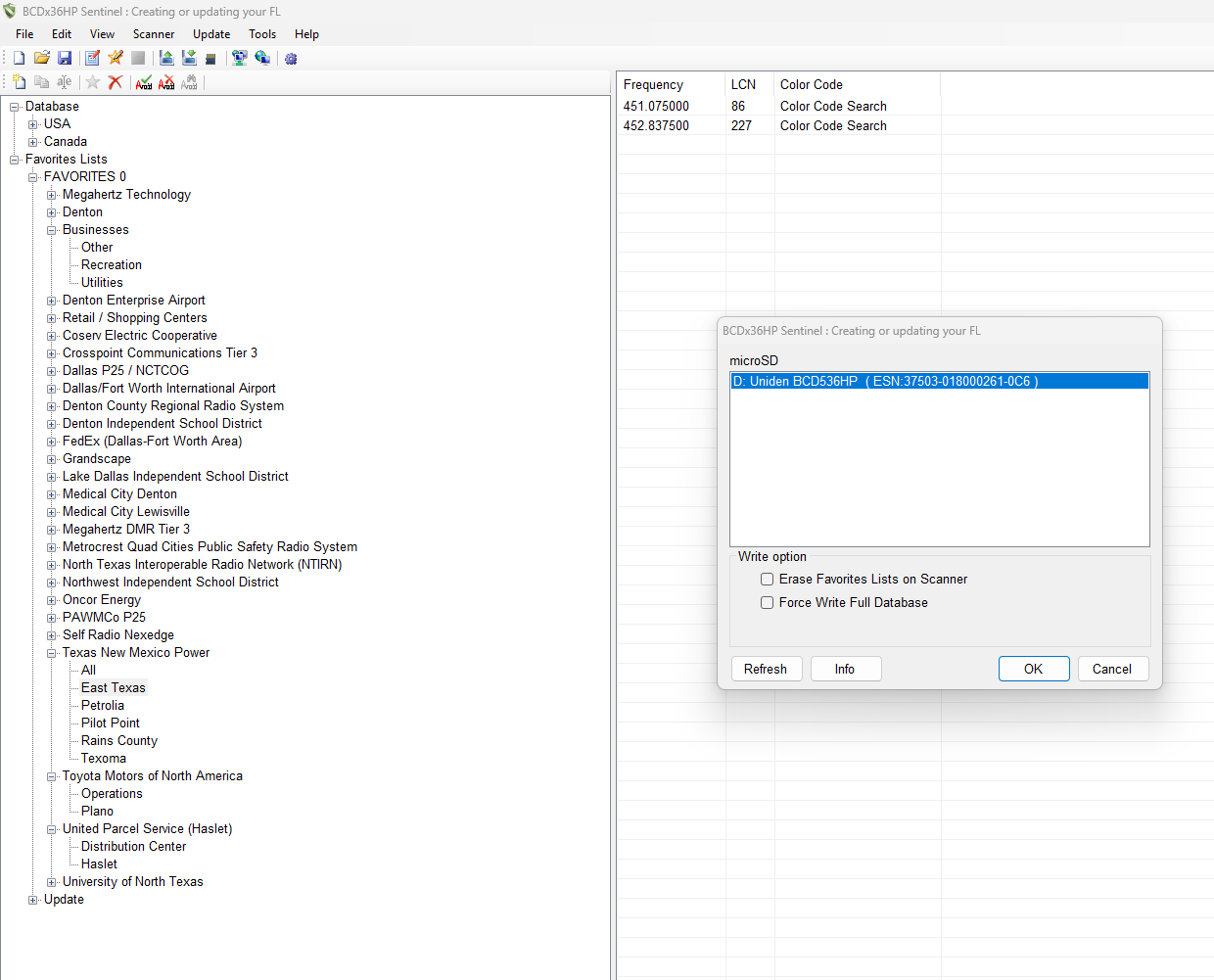
7. Once the write process is complete and you have confirmed that the write was successful, disconnect the USB from your scanner and wait for it to turn on. Some models may take longer than others. Once the unit boots up, navigate the menu to confirm the newly written favorites list is not only on your scanner, but is also active.
As an additional note, depending on your model, it is recommended that you double check that your range and service types are enabled to your preferences as well.
Was this article helpful?
That’s Great!
Thank you for your feedback
Sorry! We couldn't be helpful
Thank you for your feedback
Feedback sent
We appreciate your effort and will try to fix the article