If you're new to radar detectors, you may notice an alert even when there are no police, speed cameras or red light cameras nearby.
Often, this can feel like a malfunction, but in most cases, your radar is correctly picking up other radio frequency signals. Radar detectors can pick up a number of non-enforcement signals from things such as door sensors used by retailers, traffic monitoring sensors, and even other vehicles with Blind-spot Monitoring and lane assist features. Many of these operate on the K band, with the frequency depending on the device or vehicle make and model.
Sometimes the culprit of these "false alerts" can be from, sensors and dash cameras within your own vehicle. When this happens, you'll see your radar detector frequently alerting to a weak signal on the same frequency. So how do you deal with this?
Methods:
For false K band alerts, we recommend setting a custom low level K block.
The custom K block is a feature that is now available for R4, R4w, R7, R8, and R8w.
|
First, enable the Expert Menu.
To change this on the device itself, this is the first option in the menu. Once you've navigated to this option using the + or - button in the menu, simply hit the menu button to switch to Expert.
To change it in the R Series PC App, go to the "User Settings." The Menu Mode will be the first option under "User Preference." Click on the Mode to change.
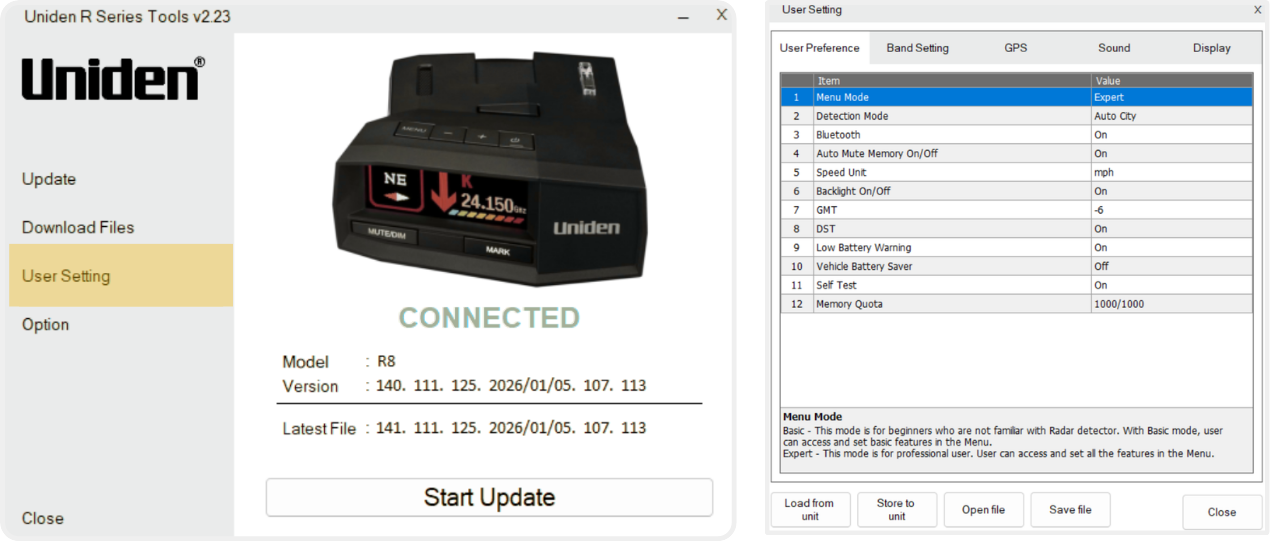
Once the Expert menu is enabled, you will now find more settings that were previously disabled.
Second, set up your K Block.
Regardless of whether you're making the change on the device itself, or within the App or Update tool, after the TSF option, you'll find the three default K Block Filters, followed by your 5 custom K Block options. On the device, the defaults appear as K blk1, K blk2, K blk3, while in the Update Tool, they're listed as K Block1, K Block2, K Block3. Ignore these first three K block options for now.
On the device:
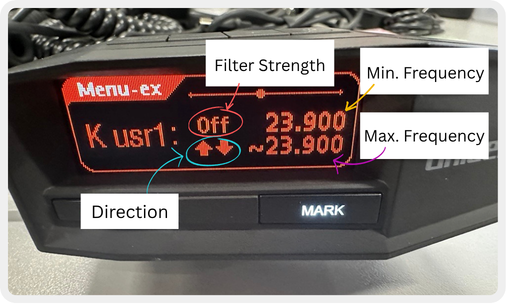
Scroll through the menu until you see K usr1 - this is your first custom K Block option. Press the menu button to begin customizing. Use the volume buttons to navigate between the K block settings. When the option you want to edit turns white, press Menu again to adjust that setting. Below is a detailed image revealing what the different options for the K Block are.
In the R Series Update Tool:
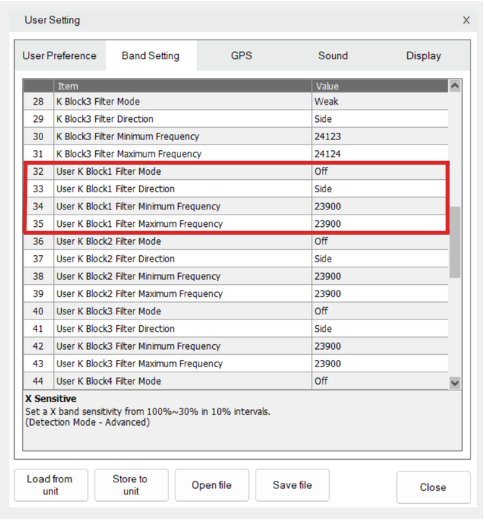
Navigate to the "User Settings", and the custom K Blocks are under the "Band Settings" tab. The first custom K block starts on option 32, about half way down the list. See the screenshot below for reference.
Our Recommendations For the K Block
Since frequencies can change minutely, set your Minimum Frequency and the Maximum Frequency just outside the frequency you're encountering. For example, soy you're encountering a constant false K that alternates between 124.139 and 24.140, set the Minimum Frequency to 24.138, and the Maximum Frequency to 24.141.
We recommend leaving the Filter Direction at its default setting to start, though you can adjust it to block signals from only the front or rear antenna if needed.
If your alert has only reached 1-2 Bars, then a 2.0 strength block should completely block that alert. Start with a weak block (1.0-2.0) and testing before increasing. This helps ensure you'll still receive alerts for stronger legitimate signals, should your local law enforcement use K band devices in that frequency range.
Alternatively, if a custom K block isn't an option, you can adjust your K Band Attenuation instead.
Adjusting K Band Sensitivity
While the K Block allows you to block or reduce certain frequencies, K Band Sensitivity allows you to adjust the antenna's sensitivity to K band signals across the spectrum.
By reducing the sensitivity, the weaker signals are ignored - leaving the stronger signals. Since this can impact detection of legitimate K band alerts, we recommend starting with a small reduction down and adjust gradually if further changes are needed. However, we don't recommend reducing the K band attenuation below 70%, as this may impact your ability to detect legitimate alerts.
To find this setting, your device will be set to Advanced Mode.
First, enable Advanced Detection Mode.
To change this on the device itself, this is the second option in the menu. Once you've navigated to this option using the + or - button in the menu, simply hit the menu button to switch to Advanced.
To change it in the R Series PC App, go to the "User Settings." The Detection Mode will be the second option under the "User Preference" tab. Click on the Mode to change.
Second, Adjust your K Band Sensitivity.
On the device:
Once Advanced Detection has been enabled, you're now able to adjust band sensitivity for X, K, and Ka Bands. Cycle through the menu until "K Band 100%" appears. Press the menu button to adjust to the desired level, the sensitivity can be reduced by 10% intervals.
In the R Series Update Tool:
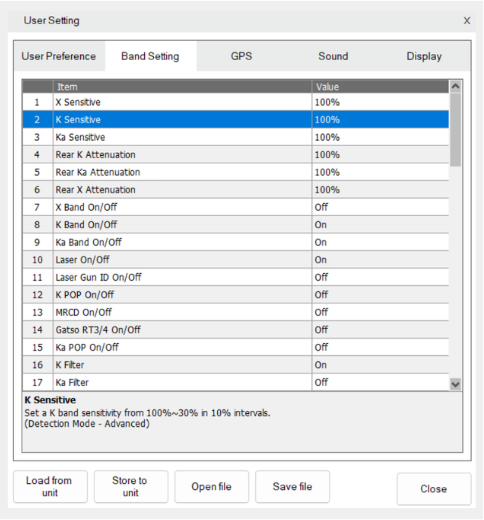
Navigate to the "User Settings", and find K Sensitive under the "Band Settings" tab. This should be the second option in the menu. Click on the percentage to adjust it to the desired level, the sensitivity can be adjusted in 10% intervals.
We know that dealing with false alerts can be tricky, so if you have any questions or need any help, please don't hesitate to contact our Customer Service team for assistance!
If you have any questions or need assistance with False Alerts,
please be sure to reach out to our Customer Service team!
You can reach us online here
or
Give us a call at 1-800-297-1023, Monday-Friday 8AM-5PM (CST)
Was this article helpful?
That’s Great!
Thank you for your feedback
Sorry! We couldn't be helpful
Thank you for your feedback
Feedback sent
We appreciate your effort and will try to fix the article