Possible culprits:
- Local device (PC Windows 11)
- USB Data Cable
- Radar detector
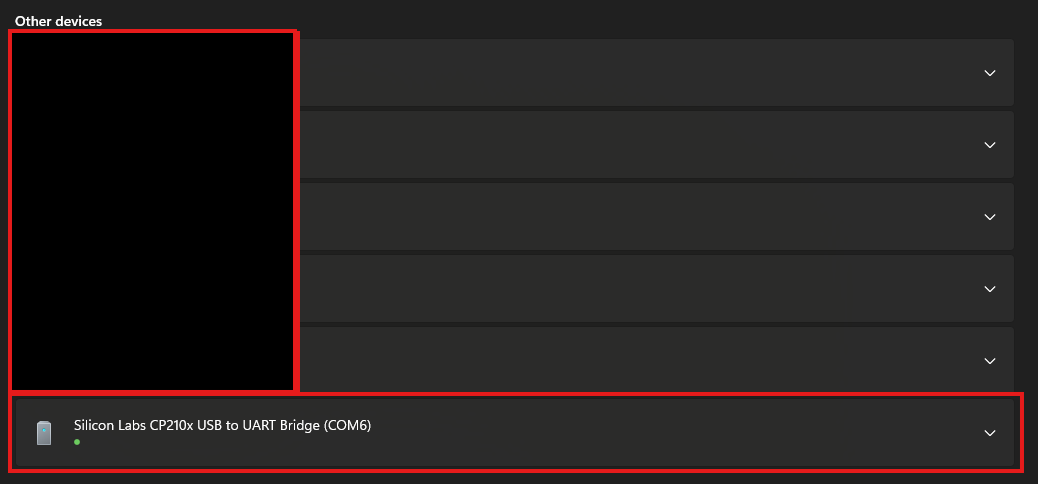
Check your PC's Update(s):
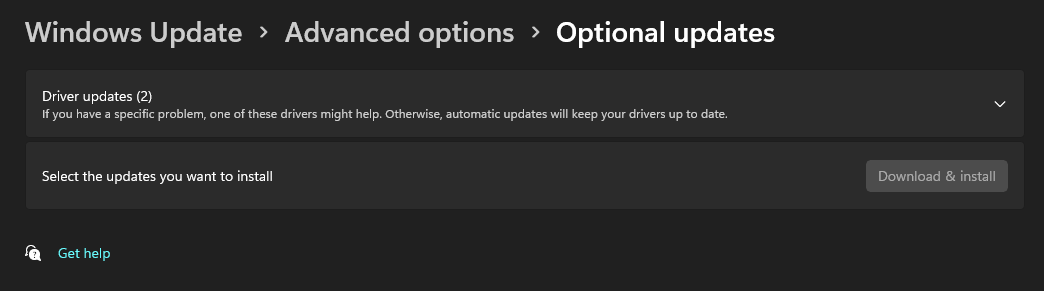
Next at the bottom left corner, select the windows logo and type in "Check for Updates" and press enter. You should be brought to your normal operating system update screen. On this screen, there will be a box labeled "Advanced Options", Select this to go to the advanced options page to select "Optional Updates". Perform all of the updates as they are available, to allow your system's USB drivers to be at their most recent version.
In addition to Updating local drivers, some users updating DFR series radar detectors may need to go to the Silicon Labs website and download the latest drivers for your USB ports. You can find this information here: CP210x USB to UART Bridge VCP Drivers - Silicon Labs
If performing these steps do not resolve your issue, proceed to the next step
2. USB Data Cable:
In order to best rule out the cable being the issue, trying out the cable in a different device (such as a laptop or a different PC) to see if the device connects. If it does not work, you can always try an alternate data cable if you have a compatible one available. The most reliable way to know if the cable is capable of data transfer is either to look into the connector, and if you see 4 metal tabs, then it will provide data transfer. Additionally, you can look for the USB's "trident" logo on either end of the cable, or by comparing the thickness of the cables, which the thicker of the two will normally be the data cable.
We strongly recommend avoiding the use of damaged cables, modified cables, frayed cables, or any cables that have exposed wires, as this can potentially cause issues during an update.
3. Radar Detector
If you've confirmed that your computer can detect that something is connected to the port, your drivers are up to date on your computer, and you've confirmed with an alternate device that the cable does allow data pass through, it may be a failing USB port on the device itself. This can be caused from overuse, being rough on the port (with reference to slamming, pushing, pressing, or inserting it in a way that would damage it), or a damaged connection to the devices board that would cause it to not communicate correctly. If you have determined that your port is no longer working, please reach out to customer support for further assistance on getting your device repaired.
Was this article helpful?
That’s Great!
Thank you for your feedback
Sorry! We couldn't be helpful
Thank you for your feedback
Feedback sent
We appreciate your effort and will try to fix the article